Welcome to Sordina
Sordina is downloading
Setting it up takes about a minute. Here’s how, and where everything is once it’s running.
Download didn’t start? Download Sordina again
Set up Sordina
-
Drag it to Applications
Open the Sordina disk image from your Downloads and drag Sordina onto the Applications folder.
-
Open Sordina
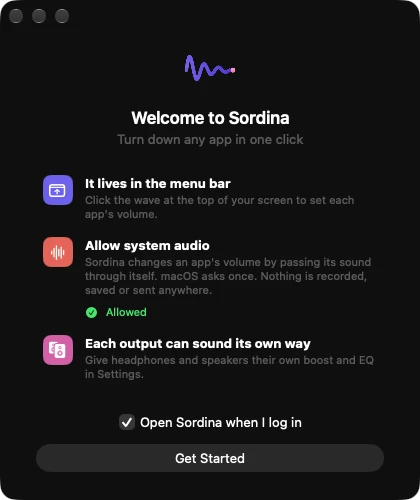
Open it from Applications. A welcome window says where it lives and what macOS will ask.
-
Allow system audio
Click Allow…, then Allow when macOS asks about System Audio Recording. Sordina passes each app’s sound through itself to change its level. Nothing is recorded, saved or sent anywhere.
-
Click the icon in the menu bar
Sordina has no Dock icon: it lives at the top right of your screen. Click it whenever you want to change a volume.
If something doesn’t look right
Missed the macOS question?
Open System Settings › Privacy & Security › Screen & System Audio Recording and turn on Sordina. Until then, the panel lists apps but can’t change them.
Can’t see the icon?
On a Mac with a notch, a full menu bar hides icons behind the camera. Hold Command and drag other icons out of the menu bar to make room, or press ⌃⌥⌘S to open Sordina.
An app isn’t in the panel?
Apps show up once they play a sound. Apps that are open but silent wait under Quiet apps.
Where things are
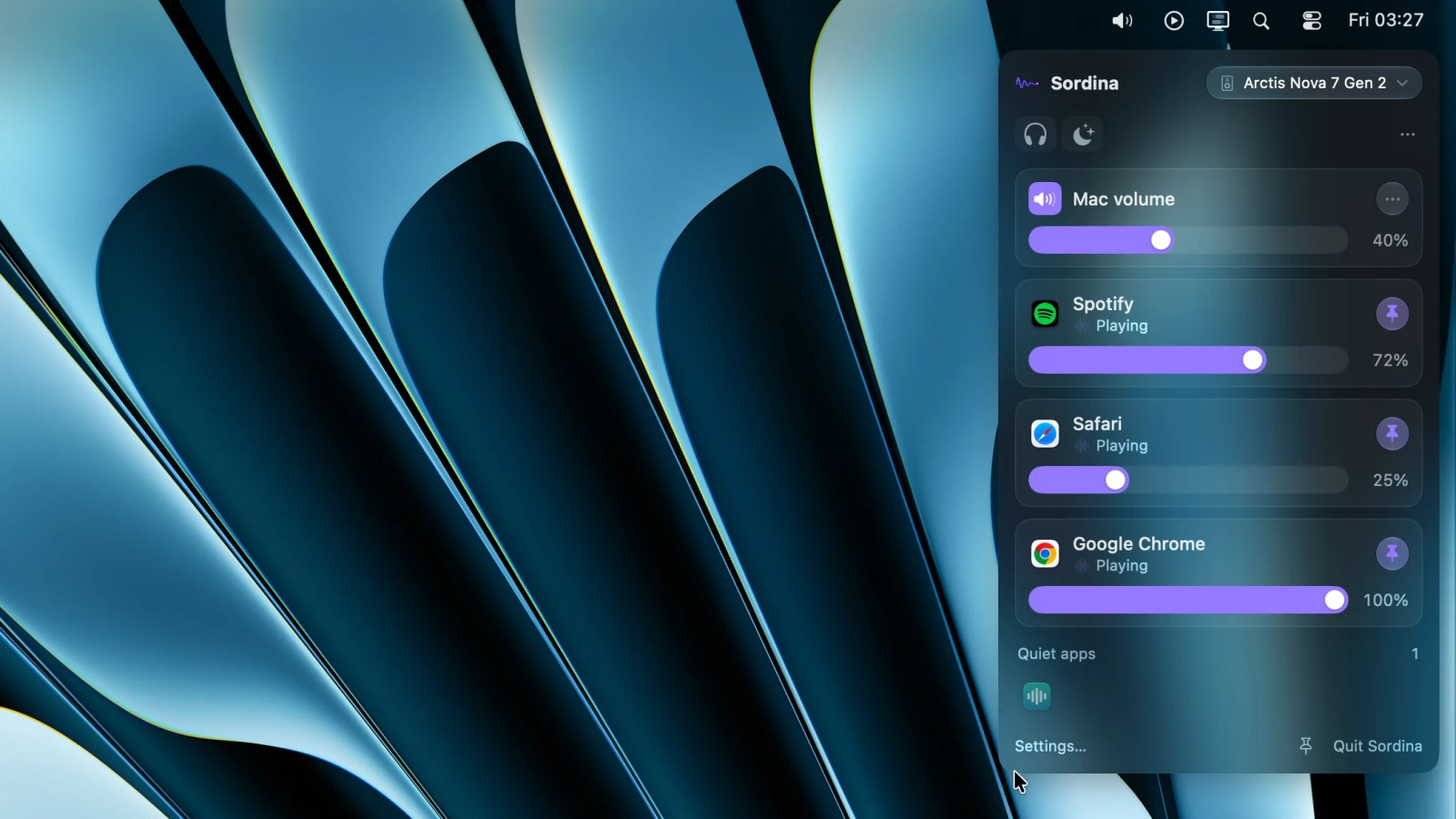
- Each app’s slider sets its volume. Mac volume is the overall level, like the volume keys.
- The round button on a card mutes or pins that app. Right-click an app for the rest.
- Settings… has the mixer layout, the theme, the menu bar icon and the panel’s background.
- Scroll on the menu bar icon to change the Mac volume, or middle-click it to mute.
The first time you open the panel, three short tips point at each of these.
Want it to do more by itself?
Pro unlocks in the app you just installed, with a key. No second download, no account.
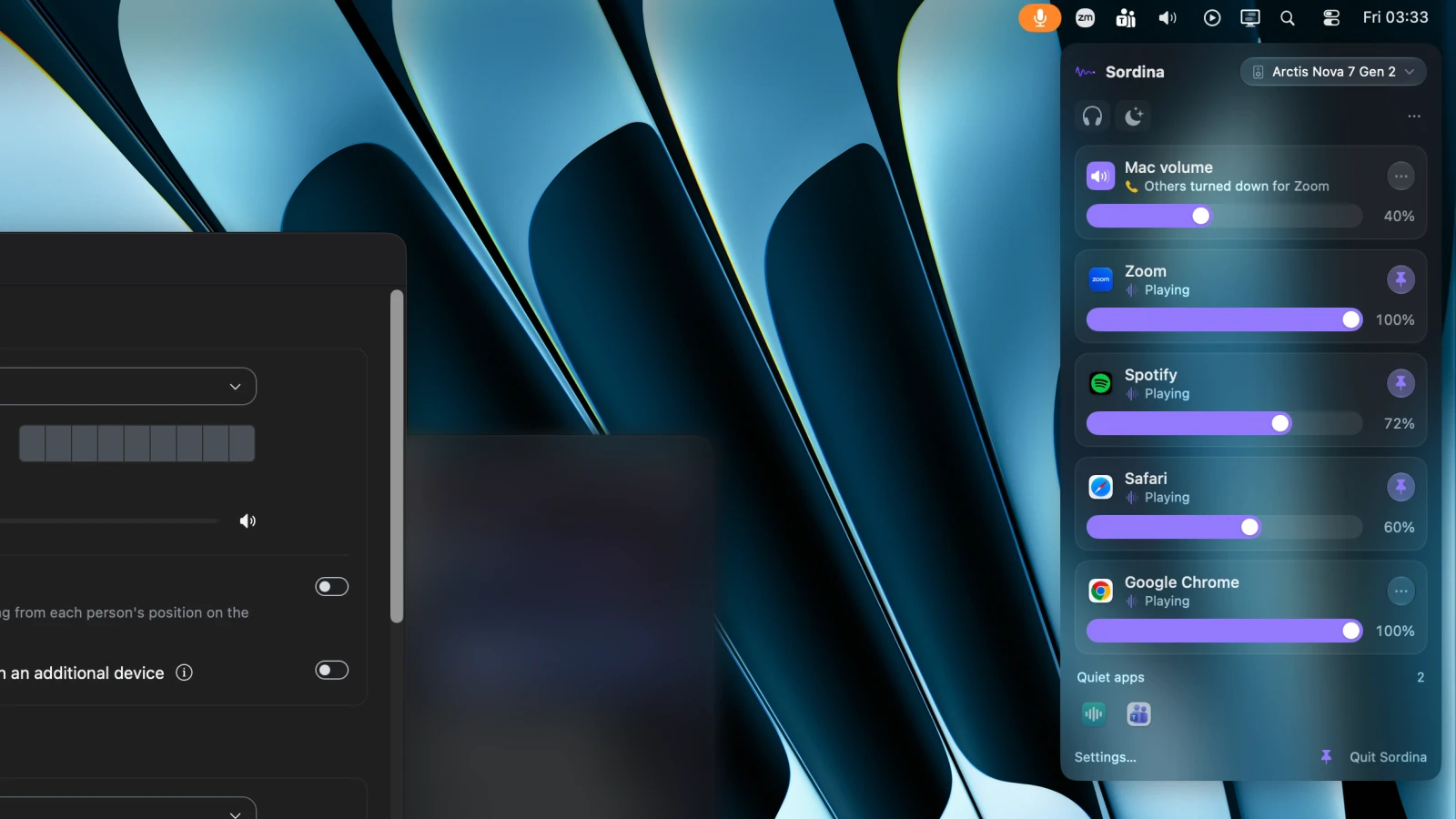
Plus VAT where it applies. Once, not a subscription. About $11 or £9 before tax. Every update included, and 7 days to ask for a refund.
Also in Pro: a three-band EQ, a gentler volume after a break, a Liquid Glass theme and a tinted panel background. How it compares
Happy listening
Questions or ideas go straight to Justin from Settings › Help & Feedback, or support@sordina.app. The guides cover the rest.